In your Classic or Designer shop, you can create categories for your products or designs. Categories will allow your customers to easily narrow down your assortment to find the tshirts they are looking for. The specifics for creating and adding products/designs to categories can be found in this helpful FAQ!
In your Classic shop, create your categories and fill them with your shirts, then activate a dropdown to appear on the top of your shop, as seen in the blue bar here. Additionally, you can use links from your website to your specific categories or code them as side navigation. Each category you create gets a specific id, found on the My Categories section. Use the Category name with C and the Category number to create the links: https://envirotees.spreadshirt.com/awareness-ribbon-C6499 or simply choose the category from your shop dropdown and copy that URL.
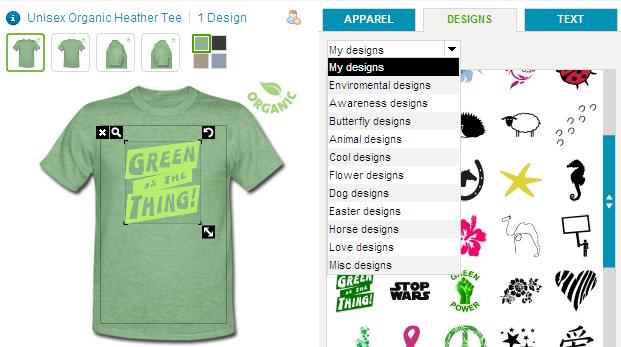
In your Designer shop, the categories would appear in the Design Tab drop down, which you can use in conjunction with the Marketplace categories or as your own category options. If you want to offer your customers more designs, but not all of the Marketplace categories, then grab designs from the Marketplace and add them to your Designer shop categories. Search the Marketplace for keywords that fit with your designs, then click on the products you are interested in. Under the product image, while logged into your Spreadshirt account, you will see an Add to my Designs option. Click this and the design will be available under the Design Tab in your user area when All or Borrowed is selected in the Show filter. You can then choose to add that design to your design categories, as you would your own designs.
The Designer shop categories also offer linking capabilities with the provided category id. You can find a tutorial with many linking options for your Designer or Classic shop on the Forum.