Menu

Recipes for your Halloween Party: so good it frightens you!

Wake up 3 more times and face the horror – Halloween and its parties beckon, so it’s high time you got into gear for it! Also, we have prepared a few eerily beautiful buffet tips for you.
Check out these two recipes:

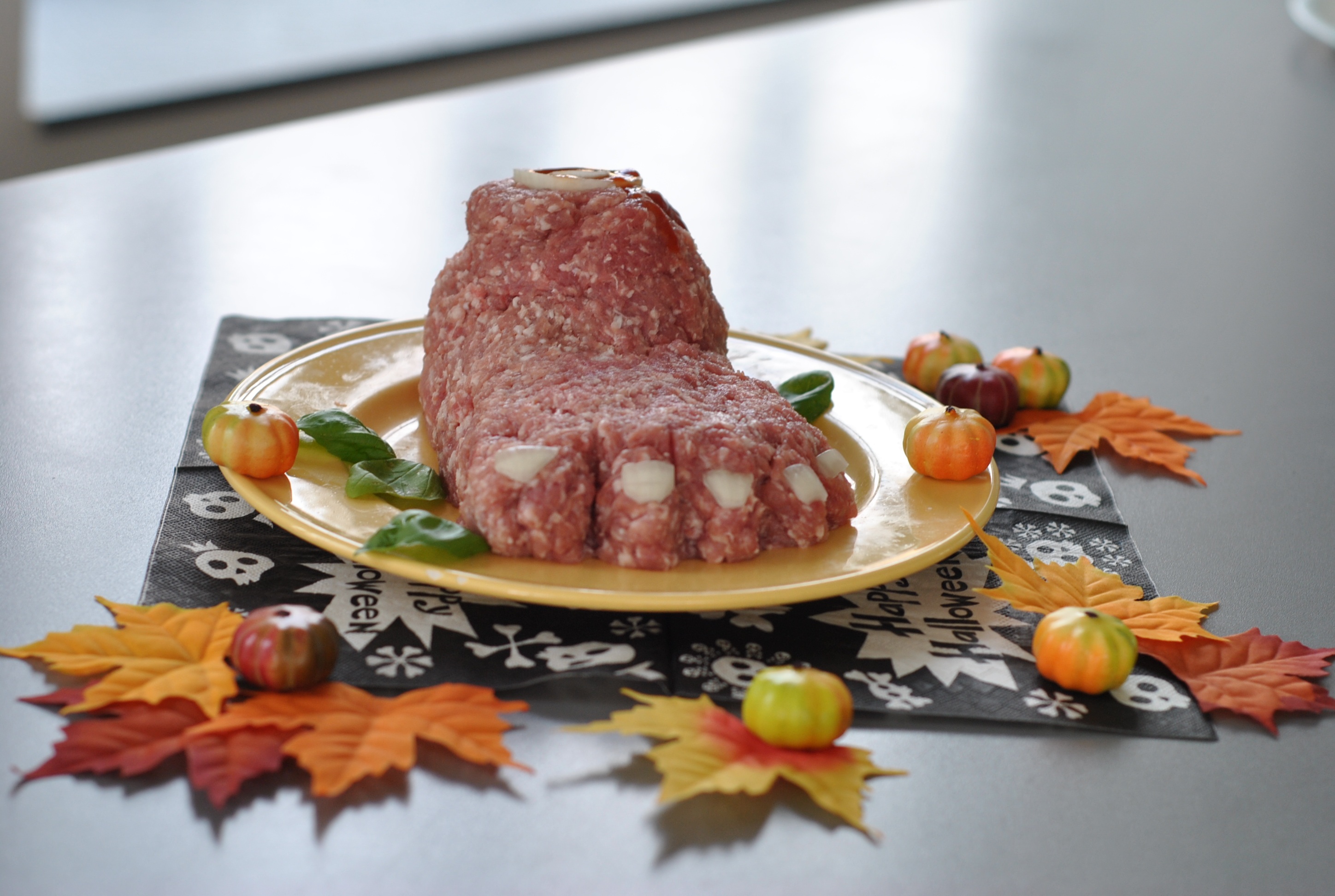
Cut-off feet


You need:
* 2 lbs. mince
* onions
* ketchup or red food dye

What you need to do:
Knead the mince properly, and season with salt and pepper. Shape the mince into a foot. Cut out tooth nails from the onion and stick on toes. Cut out more onion rings and place on stub to make it look like bone. Then use ketchup or food dye to create bloody ornaments.

Tip – can be eaten raw or baked in the oven at 180° for 20 minutes to make a meatloaf.

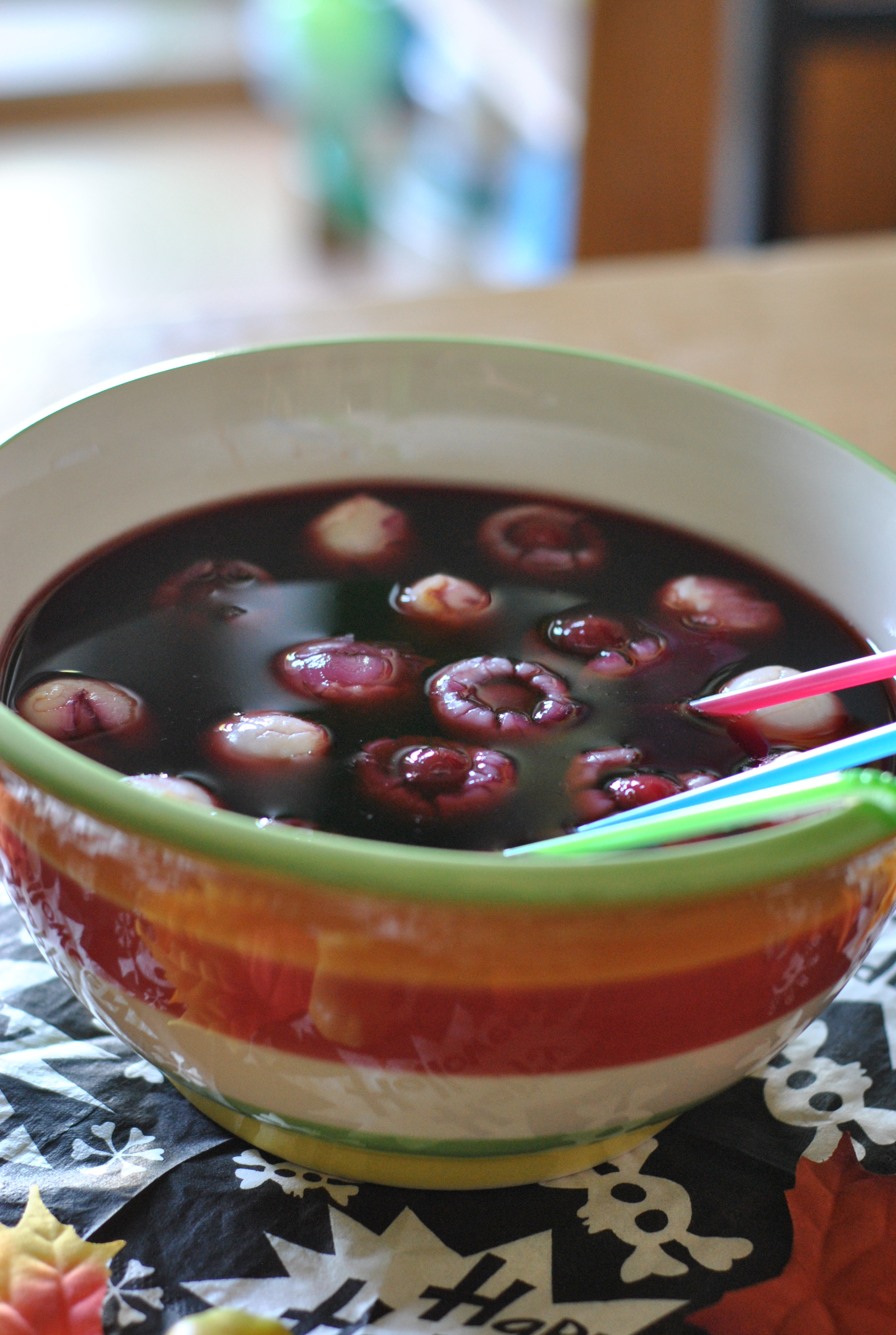
Eye bowl


What you need:
1 can of litchis
1 jar of cherries
1 bottle of cherry juice
1 bottle of lemonade
(add vodka to taste)

This is what you need to do:
1. Press cherries into litchis to make them look like eyeballs
2. Mix litchis with cherry juice in a bowl
3. Chill over night
4. Fill up with lemonade before serving (and add vodka to taste).

Enjoy your creepy meal!

Your T-shirt for a Horrific Look

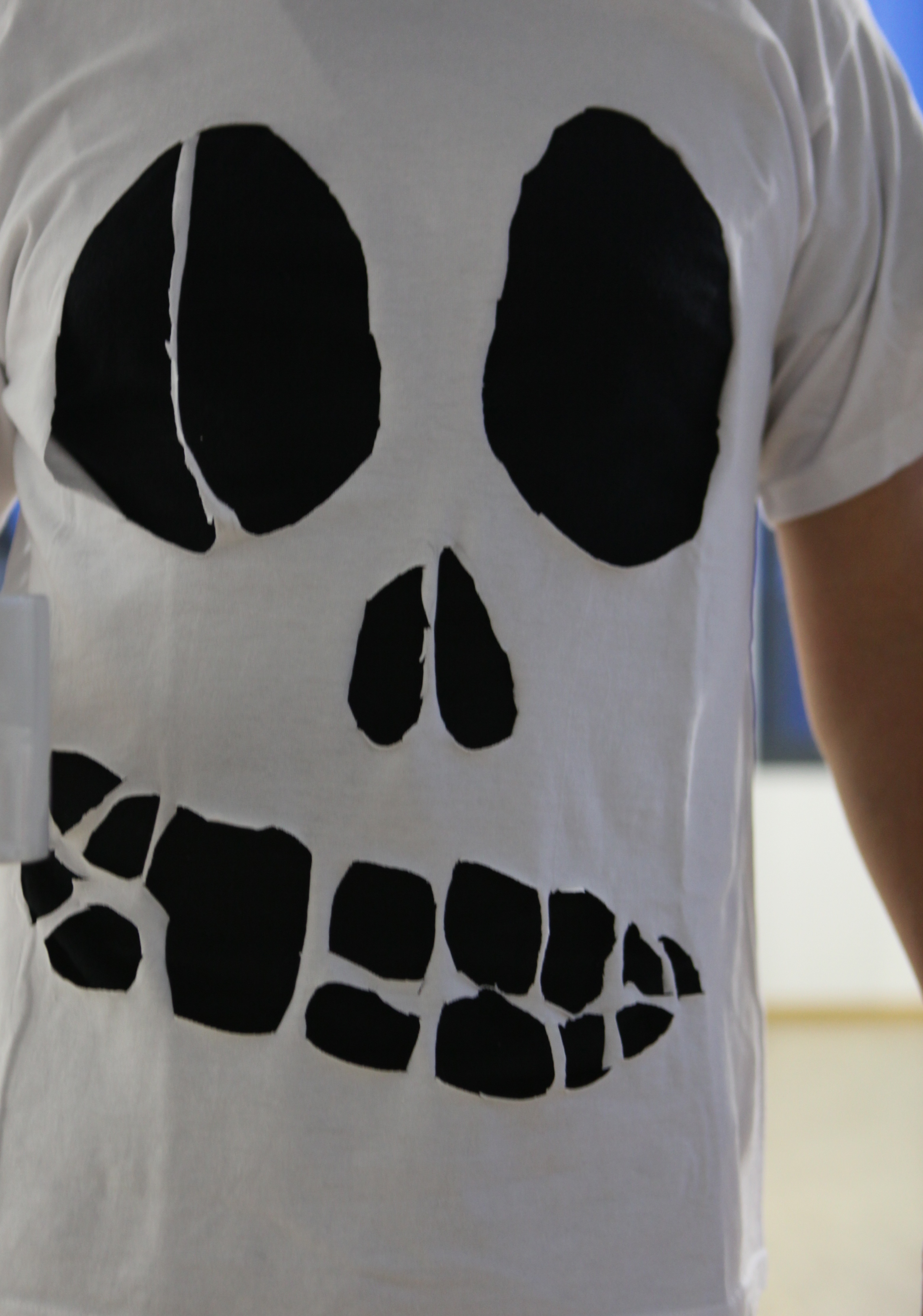
Sometimes it doesn’t take more than a t-shirt to create an eerily beautiful look. Be prepared for your next Halloween party – this is how you create your skull t-shirt.

What you need:
* a t-shirt (take one without a print on its back!)
* textile scissors
* a pen
* A3 paper

1. Take the pen to draw a skull on the piece of paper. Please note that you need to draw the inner lines and contours. Try using as much of the space as possible!

2. Place the paper under the t-shirt, and draw dots on your t-shirt to reconstruct the lines (think paint-by-number). Then cut out the fabrics by using the dots on the fabrics as indicators.
TIP – if you use a dark t-shirt, you can use chalk to draw on the t-shirt directly.

3. Be careful to cut out the skull in slightly rounded lines.

4. Wear it and look great!

Shop Training: Your FAQs answered

The second part of our shop training is devoted to three essential questions that are vital to changing your fundamental shop design settings.

1. I only want to sell a design on yellow t-shirts in my shop. Where can I find the setting, so that all products are only available in one particular colour?

Go to the main navigation bar and click on ‘Products’. The side navigation is pre-set to ‘My products’ – use this to scroll over to view the settings of the product, which you want to offer in one colour only. Underneath the product picture you then need to click on ‘Details’. This is where you can uncheck the box “Free Colour Selection”. Now your customers can only buy the product in the colour that you define.

2. Where is the banner for the current promotion that I can tie in with my shop?

Go to the main navigation bar and click on ‘News’. Here you can see an overview of current campaigns and those to come. If you click on the headline of the news bulletin, it will be displayed on its own. When viewing an individual campaign you will find banners that you can display in your shop. You can choose between a psd- and two different jpeg files.

For Designer Shops (650):
3. How can I include an inspiration box with my shop?

Go to the main navigation bar and click on ‘Shops’. Now choose your Designer Shop. It is the one with the plus sign after the Shop-ID (e.g. 123456+). Choose ‘Appearance’ in the side navigation, and then choose ‘Widgets’. Next to the inspiration box you need to click on ‘Edit’ now. There will be a drop-down menu that let’s you decide whether the inspiration box should be displayed to the left or right of your shop. The numbers reflect priorities – ‘left 1’ has a higher priority than ‘left 2’ etc. So if you e.g. upload a banner to the left of your shop and the priority for your inspiration box is set to 1, then the box will appear first, and the banner to its left. Click ‘Save’ now and – voilà – the inspiration box should be visible to the left of the Designer.

And those of you who can work their way around JavaScript, you can put the inspiration box on top of the designer if you follow the instructions given here: https://developer.spreadshirt.net/display/APPS/Inspiration+Bar.
Volume Discount! Yes, you heard me! Volume Discount!

Here’s what’s up: We have created an incredibly awesome volume discount for you. Beginning today you can save loads of money when ordering more the 5 pieces at once. Obviously the best thing that could ever happen to all the Shop-a-holics out there. Simply add more than 5 items to your basket and the discount will automatically be added.

Here is how it’ll work:

  • Order 5-11 products and save 10%.
  • From 12-24 items will give you 15% off,
  • 25-49 products will get you an reduction 20%.
  • Buy 50-99 products and  save 25%.
  • Every order over 100 products will get spectacular 30% off.

So if you’re still buying just one piece it’s your fault! We told you, volume discount is awesome!